

No results found for your search.
Select Country
Jetpack Review [2023] - Reasons to Use Jetpack
![Jetpack Review [2023] - Reasons to Use Jetpack](https://sc-huntbiz-bucket.s3.ap-south-1.amazonaws.com/7956/jetpack-review.png)
Are you debating whether or not to install the Jetpack plugin on your WordPress site? We'll address that question in our Jetpack review by covering everything you'd ever want to know about the Jetpack plugin. Is jetpack any good?
Yes, Jetpack is a good plugin for most people who are just getting started with WordPress and don't know much about it. This is because the plugin provides a lot of useful functionality to your websites that would normally necessitate installing a lot of other plugins.
First, we'll go through how Jetpack works and what it can accomplish. Then we'll focus on a few key characteristics that will have a significant impact on your website. Following that, we'll perform a fast Jetpack performance test and discuss the benefits and drawbacks of using Jetpack with your WordPress site.
Finally, if all of this has piqued your interest in using Jetpack, we'll teach you how to get started with it.
Let's get started! There's a lot to cover, so let's get started!
What Is Jetpack In WordPress? How Does It Work?
Automattic, the company behind WordPress.com, has released Jetpack, a versatile plugin. In reality, bringing a number of WordPress.com features to your WordPress site is a significant part of what Jetpack accomplishes, and you'll need a free WordPress.com account to use it.
Jetpack's tagline is "Hassle-free design, marketing, and security," and it does a very decent job of describing the features you get with it. These features are available in both free and premium versions, and the functionality you get depends on how much you're prepared to spend.
To get started with Jetpack, you'll need to link your WordPress.com account to the Jetpack plugin on your self-hosted WordPress site.
Then you'll have the option to enable or disable a bewildering assortment of options.
Let's take a closer look at how those features might help your WordPress website.
15 Helpful Reasons To Use Jetpack
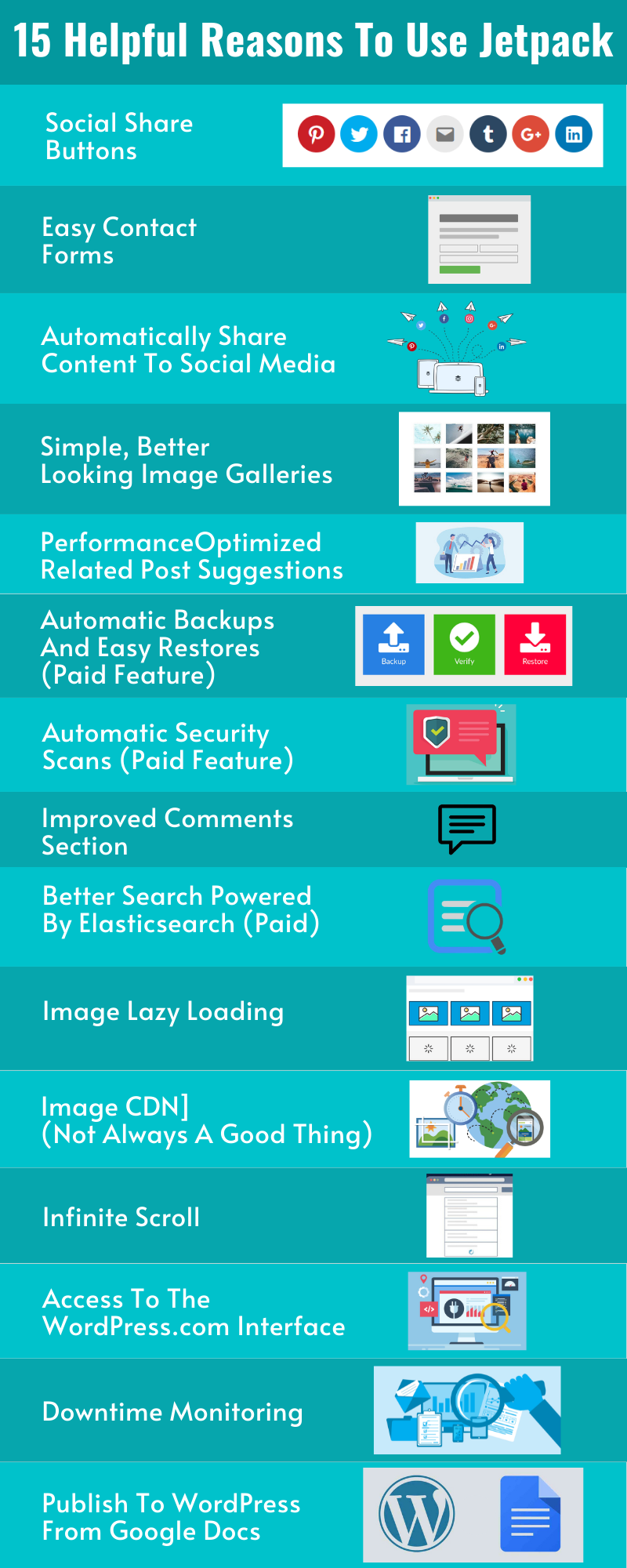
You can get a comprehensive list of Jetpack's features here. However, in this section, we'll focus on the most useful features.
1. Social Share Buttons
By making it simple for your visitors to share your material with only a few clicks, you can increase your social media visibility.
It's simple to include them in your content with Jetpack:
2. Easy Contact Forms
Do you need to make a quick contact form? There's no need for a separate form plugin or Google Forms alternatives when you can create or insert a form right from the WordPress editor with Jetpack:
3. Automatically Share Content To Social Media
Jetpack, in addition to social share buttons, can help you automatically share your new content on:
- Tumblr
- Google+ (well, until Google+ shuts down, that is!)
4. Simple, Better-Looking Image Galleries
WordPress comes with basic image gallery capability by default. It works...but it's not very appealing.
Jetpack improves on that functionality by adding more features and better-looking galleries:
5. Performance-Optimized Related Post Suggestions
Including relevant content in your posts is an excellent method to keep visitors on your site. However, related articles plugins are troublesome because they can easily slow down your site (which is why many managed WordPress sites prohibit them).
The linked post functionality in Jetpack corrects this by outsourcing the heavy lifting to WordPress.com's servers. You'll reap all of the benefits of fantastic connected posts without slowing down your site!
6. Automatic Backups And Easy Restores (Paid Feature)
If you're willing to pay, Jetpack can back up your site automatically and keep the backups safely using its VaultPress service.
Backups are vital, and VaultPress makes it simple to set them up. However, there are some excellent free backup alternatives available, such as UpdraftPlus.
7. Automatic Security Scans (Paid Feature)
This is a premium feature as well. VaultPress can do more than just back up your site; it can also scan it for viruses and assist you in resolving any issues it finds.
It's an easy way to keep your site secure, just like the backup functionality, but there are also quality free security alternatives like Wordfence.
ALSO READ: How to start a food blog in 2022
8. Improved Comments Section
Jetpack can help you improve the comments on your WordPress site in a number of ways:
- Social login – Readers can comment using their Twitter, Facebook, or WordPress.com accounts via social login.
- Comment likes – Likes for other people's remarks - visitors can "like" other people's comments.
- Email subscribe – Subscribe to receive comments through email - visitors can subscribe to receive comments via email.
One disappointment is that if you use Jetpack's social login feature, your comments form is fully replaced, which means it may not look as well as your theme's comments styling.
For example, here's the original comments section of our test site with only the Jetpack subscribe functionality:
Here's how it appears with Jetpack social login turned on:
9. Better Search Powered By Elasticsearch (Paid)
Many individuals have expressed dissatisfaction with the quality of WordPress' built-in search tool.
Jetpack Search powered by Elasticsearch is available to paid Jetpack users. Without going into the technical aspects of Elasticsearch, the most important thing to remember is that it improves search performance, reduces server load, and provides highly relevant results.
10. Image Lazy Loading
Lazy loading helps your site load faster by deferring the loading of pictures that aren't visible until a visitor scrolls down. It's a typical performance-improvement strategy, and Jetpack makes it simple to implement:
11. Image CDN (Not Always A Good Thing)
Jetpack may also help you speed up your site's picture load times with the Jetpack Image CDN, as shown in the example above (learn about what a CDN is).
However, there is a catch. Jetpack's Image CDN is rather limited in terms of CDNs. However, if you have to choose between:
- If you're not using a CDN, you're missing out.
- The Jetpack Image CDN is a service provided by Jetpack.
Then it's still a gain and a fantastic way to get your site to load faster.
Also Read : Best free CDN for WordPress [2022]
12. Infinite Scroll
As a user scrolls down the page, your site continues to load fresh material. The "neverending scroll" effect is created as a result of this.
Infinite scroll has always been difficult to implement in WordPress, which is why it's fantastic that Jetpack now allows you to enable it with a single toggle:
13. Access To The WordPress.com Interface
You'll be able to manage your site and generate content from the WordPress.com interface once you've connected your website to your WordPress.com account using Jetpack (as well as your normal WordPress dashboard).
This interface, in a sense, does not provide you any new power. However, some users prefer the following method:
14. Downtime Monitoring
Would you know if your website wasn't working right now? The downtime monitoring feature in Jetpack lets you avoid the unpleasant circumstance where your website is down but you are unaware of it.
Jetpack will check your site every 5 minutes to make sure it's still up and running. And if something goes wrong, Jetpack will notify you via email so you can resolve the problem.
15. Publish To WordPress From Google Docs
You'll enjoy this feature if you prefer to write material in Google Docs rather than the WordPress editor:
Jetpack allows you to convert Google Docs content into a WordPress draught, complete with all of the formattings from Google Docs.
Does Jetpack Slow Down Your Site? Let’s Find Out
Isn't that quite a list of useful features? Some people believe that because Jetpack includes so many capabilities, it will cause your website's page load speeds to slow down.
So, will it happen? Is Jetpack causing your site to load slowly? Let's see what we can find out!
Here's what you need to know about Jetpack's features first.
While you can utilize all of the features if you want, Jetpack is modular, so you don't have to use them all. That is, as you can see from the screenshot above, you can turn specific features on and off directly from the Jetpack interface. If you disable a feature, it won't run, therefore Jetpack's influence will be even reduced.
So here's how we're going to put it to the test...
Three tests will be carried out:
- There are no active plugins on a WordPress site that is blank.
- With the default settings, Jetpack was installed and activated.
- Jetpack has been installed and enabled, with all options turned on.
Here's how our test site performed without Jetpack:
Here's what happened after activating Jetpack with the default settings. Examine how the page size and requests increased (fewer is preferable) in addition to the raw page load time:
The power of Jetpack has been boosted...
- From 48.7 KB to 131 KB per page
- ten to twenty-four HTTP requests
Finally, here's how our test site performed after we engaged each and every Jetpack feature:
The power of Jetpack has been boosted...
- Page size from 48.7 KB to 299 KB
- HTTP Requests from 10 to 44
Although the page size and HTTP requests have increased, the total page load speeds have not changed significantly.
It's also worth noting that using third-party plugins to add a similar number of features would have a similar result. Because you'd have to add tens of different plugins to match Jetpack's features, it's only reasonable that Jetpack would have an influence.
To summarize, you should only employ Jetpack modules that are actually necessary, just as you should only use third-party plugins that are truly necessary. Aside from that, there's nothing special about Jetpack that will cause your site to load slowly.
Read Full article: Does jetpack slow down your site? [Answered]
Jetpack Pros And Cons
Let's get back to the original question: should you utilize Jetpack on your website?
Consider the benefits and drawbacks of the Jetpack plugin to get an answer...
Pros Of Jetpack
- In one package, you get a lot of functionality. You've already seen the list!
- The user interface is simple to use. With just a few clicks, you can turn on or off most of the features.
- Modular. You have complete control over the features you want.
- Free. It's also funded by Automattic, so you can be confident in its long-term viability.
Cons Of Jetpack
- There's a circumstance when you're a "jack of all trades, master of none." Jetpack handles a lot of things "fine," but a specialized plugin will give you more features. For example, you'll be happier with a dedicated forms plugin than with Jetpack's form functionality if you want more flexible forms.
- Privacy. Some individuals dislike the fact that you have to link your site to WordPress.com.
- Malicious actors have yet another point of entry. Someone may take control of your website if they gained access to your WordPress.com account. Back in May, we witnessed this. If you use Jetpack, make sure you choose a strong WordPress.com password and keep it safe.
How To Set Your Site Up With Jetpack
Do you believe the benefits outweigh the drawbacks? Here's how to set up Jetpack on your site...
Install the Jetpack plugin first by heading to Plugins Add New and searching for it by name. When you first activate the plugin, you'll be prompted to Set up Jetpack:
After choosing that button, you'll be prompted to connect Jetpack to your WordPress.com account (if you don't already have one, you'll be prompted to do so, or you can go here to do so):
Jetpack will offer you a price list once you grant your approval, making it appear as if you must pay to continue using Jetpack. That isn't the case at all!
You can pay for Jetpack if you want any of the premium features, but you can also use the free plan by clicking the little Start with free button below the pricing table:
Then you'll be directed back to your WordPress dashboard, where you can either click Activate suggested features to turn on a handful of features at once, or go to Jetpack Settings to choose which settings to turn on manually:
If you go with the latter option, you can use simple toggle buttons to activate or deactivate features:
Does jetpack slow down your site? [Answered]
Jetpack is one of the most popular WordPress plugins, owing to the fact that many web providers include it pre-installed on their servers. It has a lot of amazing features that help with performance, security, customization, content, mobility, and analytics, among other things.
Jetpack might cause a website to slow down in several instances. In many instances, Jetpack won't go handy with other plugins, such as WP rocket lazy load, Ezoic etc.
We'll get to the bottom of whether Jetpack slows down your WordPress site later in this article.
Is it necessary for me to use Jetpack?
Pros
- When it comes to managing multiple features from one location, Jetpack can be really useful. Consider Jetpack to be a collection of plugins in one.
- The plugin is updated on a regular basis, so you'll never have to worry about the devs abandoning it. It is not going away!
- Jetpack provides a lot of important features for free, which is a good deal considering that competing plugins charge for similar capabilities.
Cons
- Jetpack's dashboard layout can be a little tough to use because it has so many functions.
- To use Jetpack, you'll need to sign up for a WordPress.com account and connect it.
- Jetpack, if left unchecked or improperly configured, can significantly slow down your site and cause conflicts with other plugins, which we shall discuss later.
Jetpack: Everything You Need to Know
Jetpack installs a lot of modules that aren't needed.
If you leave Jetpack's default settings, it will load a few of modules by default when the plugin is activated, which you probably don't need some of, if not all of.
Needless to say, this will have a significant impact on the speed of your site. You probably don't need all of these modules turned on. As a result, we'll look into how you can disable the modules you're not using and maintain only the ones you require.
To give you a better understanding of everything Jetpack has to offer, I've put together a list of all the modules it has to offer, along with my recommendations for each one.
NOTE: Modules with an asterisk (*) are active by default.
Custom CSS*
Customize the look of your site without changing the theme's original code. There's no need to use this feature; instead, you can use it as a better and lighter alternative to a plugin like "Child Theme Configurator" to build the child theme, where you can add your specific adjustments.
Single Sign On
Allow users to log in using their WordPress.com accounts.
— Feel free to disable this functionality if it isn't needed.
Site Icon*
— Favicon — Add a site icon to your website. You can upload your favicon in a variety of ways. For example, you can use your theme's settings to do so, or you can utilize WordPress customization settings to do so.
Site Verification*
This is primarily for Google Search Console and social media verification. — If you're in control of your SEO's technical side, you may need to verify your site with one of these services; nevertheless, each of them has different options for verifying your site.
Related Posts
— Displays a list of similar posts. The best method to achieve this, in my opinion, is to add a line of code, but if you aren't like coding, there are other plugins that would suffice. However, it remains to be seen whether those plugins will be a faster option.
Markdown*
Allows you to write rich text quickly and easily. — There's no need to use this function because the default text editor is already simple to use.
Monitor
— This is a useful function for monitoring your site's downtime; if you're concerned about your site being down or if it's suffering regular downtime, I recommend that you utilise it. There are various online alternatives to Jetpack that allow you to monitor your site from afar without having to install any code to your site.
Jetpack Single Sign On
Allow users to utilize their WordPress.com accounts to log in. This is unlikely to be required.
VideoPressPaid
Embed videos directly on your website. (additional cost) — In my opinion, it's pointless and a waste of money because you can easily embed movies (like YouTube or others) into your text by copying and pasting a basic code obtained from the video's settings.
Widget Visibility*
This allows you to choose which widgets to display on your site's pages. — There are free plugins available for this, such as Widget Options.
Likes
Adds the ability for visitors to like the content of your page. — This is irrelevant; comments are a better and more constructive way for visitors to express their gratitude and communicate with you.
Tiled Galleries*
— Adds image galleries in a variety of layouts. There are several plugins available that serve this exact purpose and have more specific features.
Publicize
— Share fresh posts to your social networking networks automatically. This is primarily applicable to e-commerce sites. It will, for example, automatically share new products on your social media profiles when you add them.
Post by Email
Using any device and email programme, send posts by email. This is ineffective.
Photon
By utilizing the WordPress.com CDN, your photos will load faster. — They solely provide CDN for images. On the other hand, Cloudflare provides free services for all types of files as well as a wide range of additional features, including security, free SSL, speed optimization, and much more. This will help you save bandwidth on your server in the long run.
Infinite Scroll*
Useful for increasing your site's performance and making surfing more user-friendly for your visitors. — There are free plugins that provide the same functionality with additional choices.
Notifications
— Use the admin toolbar to receive updates about your site's activity. This isn't actually required.
JSON API
Some cloud-based applications require this feature to access your material. — There's a chance you won't need it, so give it a shot and see what happens.
Mobile Theme*
Using a distinct theme, make your site responsive (mobile-friendly) for smartphones. The mobile theme they offer is, in my opinion, quite simple; there are a lot nicer Responsive themes that you can download for free. Most, if not all, themes these days are responsive. This is now a standard.
Carousel*
— Turns photo galleries into full-screen presentations. Many free plugins are available to help you improve your results.
Jetpack Comments
Allows readers to use their Facebook, Twitter, and WordPress.com accounts to submit comments.
— This is not a good idea.
Contact Form*
- Displays a contact form on any page of your website. For this type of work, there are many more powerful and lightweight plugins available.
Extra Sidebar Widgets*
— Fill your sidebar with images, social media streams, articles, categories, and more. This, too, can be remedied with better plugins.
Subscriptions
Allow users to subscribe to your articles and comments and receive email notifications. — There are already plugins that provide the same functionality.
Enhanced Distribution
Search engines can index your content and comments. — This functionality is enabled by default in most blog templates.
VaultPressPaid
Security checks and automatic backups will keep your site safe. (Paid subscription) – Plugin for a fee? Alternative plugins that take care of your automatic backups and security while reducing page load are available for free.
WordPress.com Stats
Clear and consistent reports can help you keep track of your website's traffic.
— Again, Google Analytics is a better choice; no one does it better.
Shortcode Embeds*
Embed content from YouTube, Vimeo, and other social networking sites, as well as many others, without requiring any coding.
— Again, there are plugins available if you require these features.
Spelling and Grammar
Use the After the Deadline proofreading option to double-check your spelling, style, and grammar. — This may be added to your favourite browser as an addition or extension and will not slow down WordPress.
Sharing*
Make it easy for users to share your material on social media with just one click. — There are a slew of plugins that provide the same sharing functionality and allow you to choose which social media platforms to post your work on, making it even easier to use only what you need.
WP.me Short Links
All pages and posts now have WP.me shortlinks. — There are several plugins available for this in the WordPress source.
Gravatar Hovercards*
Allow commenters' Gravatars to appear as pop-up business cards.
— Thank you, but no. On my website, no comments are permitted.
Beautiful Math*
For complex mathematical equations, use the LaTeX markup language in pages and posts. Only if you have a scientific reader will this be beneficial. However, additional solutions with greater options are likely to exist.
Jetpack Can Have Conflicts With Other Plugins
Depending on which modules you have activated, Jetpack may cause conflicts with certain of your plugins. This can include everything from security plugins to caching plugins and so on.
For example, if you have Jetpack's lazy load module enabled and WProcket activated, the lazy load functionality of WProcket will most certainly conflict. This can frequently result in visual defects, the display of error messages on your pages, and, on rare occasions, a complete site crash.
To give you a few examples, consider the following: Many WordPress users utilise iThemes security, W3 Total Cache, WPML, Revolution Slider, and other plugins; regrettably, they are included among the Jetpack support page's conflicted plugins.
What You Need To Know About Jetpack CDN
Once enabled, if you desire to use it by serving your images from their server:
- All of your current photos will be saved on Jetpack CDN's server. If you want to delete one of your photographs from their server once you've activated Jetpack, you'll have no choice except to send them a request and supply them with the image URL.
- If you don't optimise your pictures before enabling Jetpack Image CDN, you'll be left with your old unoptimized heavy photos because Jetpack won't synchronise your new optimised images.
- The CDN will preserve your photographs on their server indefinitely even if you deactivate or uninstall the plugin.
- Cloudflare is a far superior free alternative that doesn't have any of the issues described above, and it certainly has a lot more to offer. In fact, Cloudflare is what I use for my site, and I can't say enough good things about it.
How To Stop Jetpack From Slowing Down WordPress?
How Can I Prevent Jetpack From Slowing Down My WordPress Site? Jetpack comes with a few modules activated by default when you install it, which in turn load a lot of scripts.
One method is to eliminate the functionality you don't need in the settings, but I observed during my testing that several modules were not available from the jetpack settings. So, how do you turn off the rest of the modules?
Let's just say they're buried and difficult to find at first, but don't worry, I've got just the solution for you. When you're on the Jetpack dashboard, scroll all the way down to the bottom and choose Debug.
Next, scroll down to the bottom of the page and click on Access the complete list of Jetpack modules accessible on your site. After that, you should see a page with a list of all the modules that have been enabled. So turn off any modules you don't use.
Alternative Plugins For Jetpack Modules
As I previously stated, there are other free and premium plugins that may provide more functionality than Jetpack without interfering with other plugins.
For example, here is a list of plugins that are an excellent alternative to several of Jetpack's modules, to mention a few.
For Security
- Wordfence is available for free ($99 for the premium version).
- iThemes Security is free (the commercial version costs $80 per year).
For Speed Optimization
- NitroPack offers a free plan
- WP-Rocket – Paid (annual fee of $36)
- WP Fastest Cache is a free plugin that costs $49 for the premium edition.
- Cloudflare CDN is free (the pro plan costs $20 per month).
- Swift Performance is available for free ($40 for the non-lite version).
For Forms
- WPForms – Free (non-lite edition costs $39 per year).
- Formidable Forms - Free (basic edition costs $99 per year).
- Gravity Forms is available for free (a basic license costs $59 per year).
- Ninja Forms is available for download for free ($49 for the personal edition).
For Site Statistics
- Google Analytics and Google Search Console are both available for free.
For Image Compression
- Smush - Free image compression ($70 per year for three websites)
- ShortPixel Image Optimizer - 100 photographs per month for free ($5 for 5k images per month)
For Sitemaps
- Yoast SEO for WordPress – Free Google XML Sitemaps – Yoast SEO for WordPress – Free Google XML Sitemaps
Backups
- UpdraftPlus is a free service. Premium costs $70 a year for two websites.
- BackupBuddy is a paid service ($80 per year for a single site).
- VaultPress - Free (personal edition costs $39 per year).
- BackWPup is free (the premium edition costs $69 per year).
For Spam Filtering
- Antispam Bee – Free Akismet – Registration is required for a free account ($5 per month for the Plus edition).
- CleanTalk Anti Spam - Free ($8 per year for one site)
As you can see, some of the plugins have a paid version for a reason: they provide significantly more value than the free versions, with significantly higher design, feature, and support quality. It's for this reason that they're referred to as Premium plugins.
There are a variety of additional options for all Jetpack features, ranging from free to expensive plugins. Almost everything you need may be found in the WordPress repository.
NOTE: For each category, I have listed the plugins in order of performance, starting with the best.
Wrapping up:
If you decide to stay using Jetpack, I strongly advise you to disable any modules that you do not require. Jetpack installed incorrectly might have disastrous consequences for your website.
If performance is a top priority for you, the trifecta of one of the caching plugins I listed above + Cloudflare + Asset CleanUp is your best bet (to disable unneeded modules in specific pages).
Finally, I'd like to point out that Jetpack is an excellent choice for small blogs, but if your site grows and scales, and you want to take it to the next level, it'll be a good time to consider using alternative plugins.
I hope this post has given you a better understanding of Jetpack; if you have any questions, please leave them in the comments below; I would love to hear from you!
Also Read:
- Best SEO plugins for WordPress
- Best WordPress content curation plugin
- Free WordPress alternatives [2022]
FREQUENTLY ASKED QUESTIONS
Is Jetpack available for free on WordPress?
Yes, there is a completely free version.
Is Investing in a Jetpack Worth It?
Not really; there are better options available in the WordPress repository.
Is Jetpack CDN a Good Option?
It is not something we recommend. Cloudflare is a far superior solution with far more features.
Is the Jetpack's security adequate?
It provides an additional layer of security to your site, but it does not prevent you from all types of attacks.
What Is The Best Way To Remove Jetpack From WordPress?
Deactivate the Jetpack plugin before deleting it. After that, delete all Jetpack-related tables from your database with WP-Optimize.