

No results found for your search.
No results found for your search.

Launching a new website or updating your content is an exciting milestone, but it’s only the first step toward building an online presence. Without prompt indexing by Google, your site remains invisible to potential visitors searching for your products, services, or expertise. Contrary to popular belief, simply publishing your website does not guarantee that Google will find or rank your pages quickly—sometimes, it can take days or even weeks for search engines to discover new URLs on their own.
Proactively submitting your URL to Google is the fastest way to ensure your site appears in search results as soon as possible. This is especially crucial for new websites, time-sensitive content, or important updates that you want users to find right away. By taking control of the indexing process, you can accelerate organic traffic growth, improve your site’s visibility, and start reaping the benefits of your hard work sooner.
In this guide, you’ll learn step-by-step methods to index your website on Google, including how to use Google Search Console’s URL Inspection Tool, submit sitemaps for bulk indexing, leverage the Google Indexing API, and troubleshoot common issues. Whether you’re a business owner, marketer, or SEO beginner, you’ll find actionable strategies to get your site discovered faster. For a broader understanding of how SEO works, check out our guide to SEO fundamentals.
Although Google’s bots are designed to automatically discover and crawl new websites and pages, relying solely on this passive process can leave your content waiting in limbo for days or even weeks before it appears in search results. Manually submitting your URL to Google is a proactive strategy that accelerates indexing, giving your website a competitive edge and ensuring your latest updates reach your audience faster.
While manual submission is not a substitute for a well-optimized, crawlable website, it’s an essential step for anyone who wants to index their website on Google quickly—especially after major updates or when launching new content. Combining this approach with best practices like submitting a sitemap, building inbound links, and maintaining a clear site structure maximizes your chances of fast, reliable indexing.
To understand how to submit your URL to Google effectively, it helps to know what happens behind the scenes. Google’s indexing process involves two main stages: crawling and indexing. Each plays a crucial role in whether—and how quickly—your website appears in search results.
Even after you optimize your site for SEO and request indexing, delays can occur. Common reasons include:
Understanding this process helps you troubleshoot if your site isn’t appearing in Google as quickly as you’d like. For a deeper dive into the basics of website development and how it impacts SEO, check out our guide.
Getting your website or new content indexed by Google quickly is essential for visibility and organic traffic. Here’s a clear, up-to-date guide for submitting your URL to Google using the most effective methods in 2026. This process is suitable for both individual pages and bulk submissions.
 Submit URLs to Google in 60 Seconds or Less
For Bulk URL Submission:
Troubleshooting Tips:
By following these steps, you can efficiently submit your URL to Google and maximize your chances of fast indexing. For a deeper dive into optimizing your site for search engines, check out our complete SEO guide.
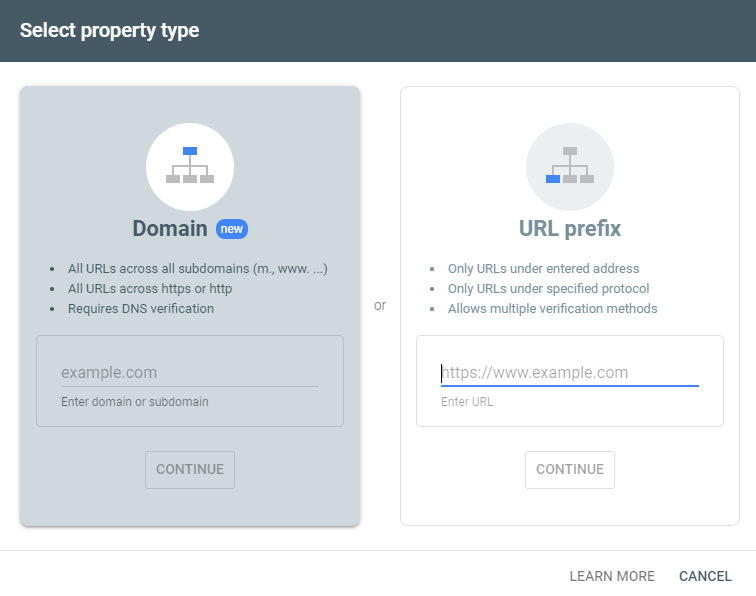 How to submit url to Google
After you submit your domain, the tool will immediately check for availability. When the scanning is finished, you'll be given five options to confirm the ownership of domain.
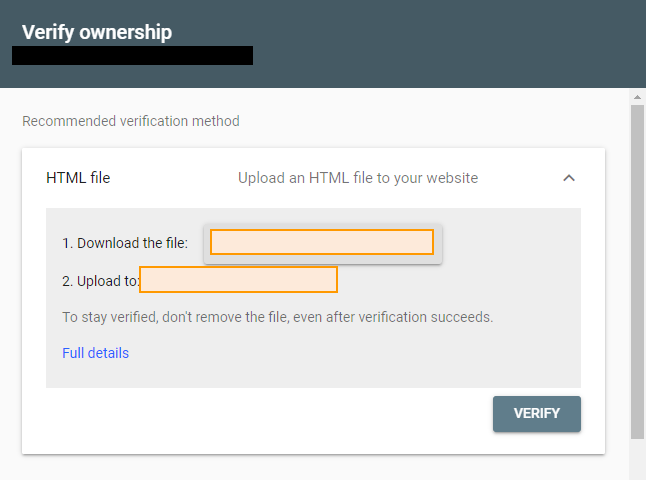 HTML File verification
Website or Domain ownership at Google Search Console (GSC) can be verified with the following methods:
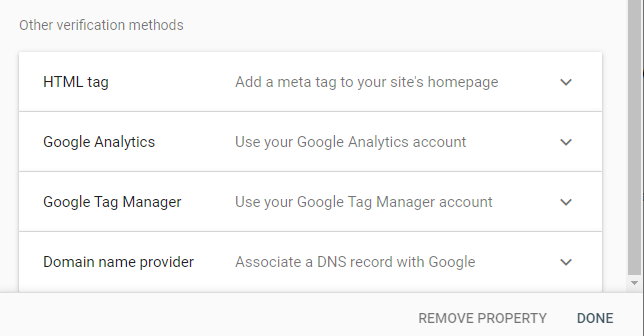 Google Search Console verification methods
You must use one of the methods provided to verify the site. We'll go over the first two steps of URL verification here.
HTML tags are meta tags that have a specific number-character string and are written in HTML code. The Google Search Console tool will generate a unique HTML tag for you to paste into the head> section of your home page. There are a few different ways to add that HTML tag to the heading section.
The header and footer plugin is less efficient than using Yoast and Rank-Math to evaluate the HTML element.
Go to Rank-math > General settings after installing the Rank-Math plugin. Then, in Google Search Console, go to Google Search Console> Paste the HTML element. Save the settings by scrolling down.
Now, go to Google Google Search Console Tools and verify the website, just like in the previous example. After you've completed the verification process, you'll be able to access the Google Search Console tool dashboard. The next step is to submit the sitemap for your website to the Google Search Console tool.
Submitting an XML sitemap is one of the most efficient ways to help Google discover and index multiple pages on your website quickly. A sitemap acts as a roadmap, guiding search engines to all the important URLs on your site, including new or updated content. This is especially valuable for large sites, e-commerce stores, or blogs with frequent updates, as it ensures Google can crawl and index your content more comprehensively and efficiently.
What is an XML Sitemap and Why Does It Matter?
An XML sitemap is a structured file that lists all the URLs you want search engines to know about. It updates automatically when you add, remove, or modify pages, helping Google stay current with your site’s changes. A well-maintained sitemap can improve your crawl budget allocation, speed up indexing, and highlight priority content. For more on the fundamentals of SEO and why sitemaps matter, see What is SEO: All you need for Optimizing your site.
How to Generate Your Sitemap
Most modern content management systems (CMS) and SEO plugins can generate sitemaps automatically. Here are common options:
https://your-domain.com/sitemap_index.xmlhttps://your-domain.com/sitemap_index.xmlhttps://your-domain.com/sitemap.xmlTo confirm your sitemap address, visit yoursite.com/sitemap.xml or yoursite.com/sitemap_index.xml in your browser. If you use a different platform or custom setup, check your CMS documentation or use a tool like Screaming Frog to generate one manually.
Step-by-Step: Submitting Your Sitemap in Google Search Console
sitemap_index.xml), then click Submit.After submission, Google will periodically check your sitemap for updates. If there are any errors (such as unreachable URLs or unsupported formats), Search Console will notify you so you can fix them promptly. You may also receive an email confirmation about the submission.
Tips and Best Practices
For additional ways to promote your blog and drive organic traffic, consider combining sitemap submission with other SEO strategies like internal linking and content marketing.
After submitting your sitemap or individual URLs to Google, it's crucial to confirm that your pages are being processed and indexed as expected. Monitoring this process helps you catch issues early and ensure your content appears in search results quickly.
site:yourdomain.com/your-page into Google Search. If your page appears in the results, it’s indexed. If not, it may still be processing or there could be technical issues.Pro Tip: Indexing can take anywhere from a few hours to several days. If your URL isn’t indexed after a week, review your technical SEO setup. Issues with meta tags, robots.txt, or slow page speed can delay indexing. For more on optimizing your site for search engines, see What is SEO: All You need for Optimizing your site.
Troubleshooting Common Issues:
Consistent monitoring ensures your content is discoverable and helps you address problems that could prevent your website from appearing in Google Search results.
There are several reliable ways to submit your website or individual URLs to Google for indexing. Each method serves different needs, from submitting a single new page to ensuring an entire site is discoverable. Below, we compare the main approaches, their use cases, and pros and cons so you can choose the best option for your situation.
For most website owners, combining the URL Inspection Tool for urgent pages with sitemap submission for overall site coverage is the most effective approach. Advanced users managing dynamic or large-scale sites may benefit from the Indexing API. Indirect methods, such as earning inbound links and promoting content, can further boost your site's visibility and indexing speed.
To learn more about optimizing your site for search engines, see our guide on what is SEO and explore content marketing strategies that help your pages get discovered faster.
Submitting a single URL to Google for fast indexing is straightforward and highly effective when you’ve just published a new page or made significant updates. The URL Inspection Tool in Google Search Console (GSC) is the go-to method for this purpose, allowing you to request a crawl and index for any specific URL on your verified property. This is especially useful for blog posts, landing pages, or important content updates you want Google to discover quickly, without waiting for the next routine crawl.
 Request a crawl
Here’s a step-by-step walkthrough for submitting an individual URL to Google using the URL Inspection Tool:
https:// or http://).noindex tags or server errors).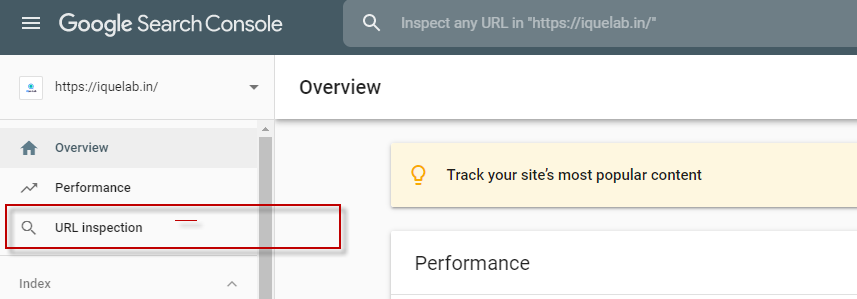 URL inspection
Pro Tips for Faster and Successful Indexing:
noindex tags, robots.txt blocks, or password protections. Pages blocked from crawling or indexing won’t be accepted.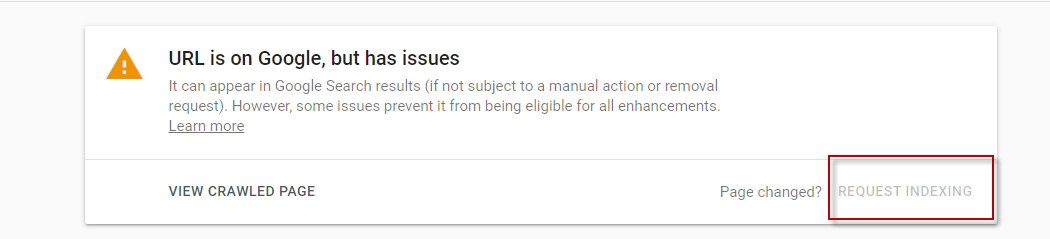 request indexing
Or
You can also paste your URL into the Fetch as Google tool (now integrated into the URL Inspection Tool in modern GSC). If the URL is not yet indexed, simply click “Request Indexing” to prompt Google to crawl and add your page to its index.
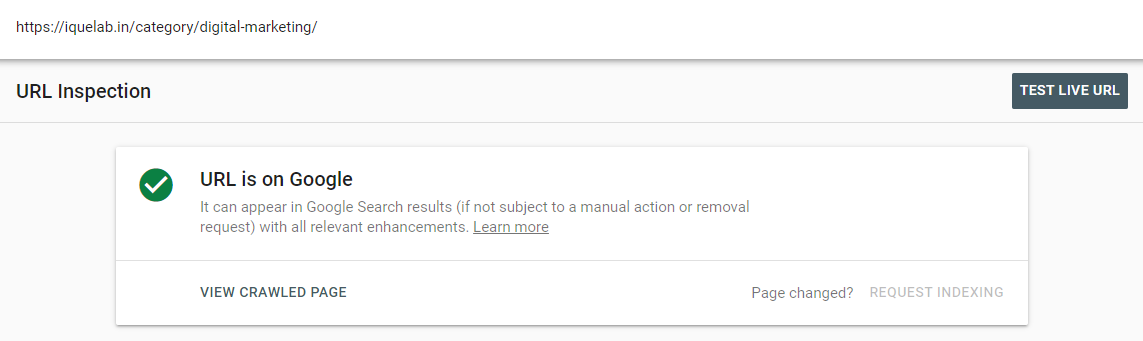 Indexing Request
Troubleshooting Common Issues:
noindex tags, canonical issues, or robots.txt restrictions.For a deeper dive into optimizing your site for search engines before submitting URLs, see our guide on what is SEO. If you’re working with multiple new pages, consider submitting a sitemap (covered in the next section) for bulk indexing.
If you need Google to index multiple pages or a whole website quickly, submitting a sitemap through Google Search Console (GSC) is the most efficient approach. A sitemap is an XML file that lists all the important URLs on your site, helping Google discover and crawl your content systematically. This method is ideal for new websites, major updates, or when you add a large batch of new content.
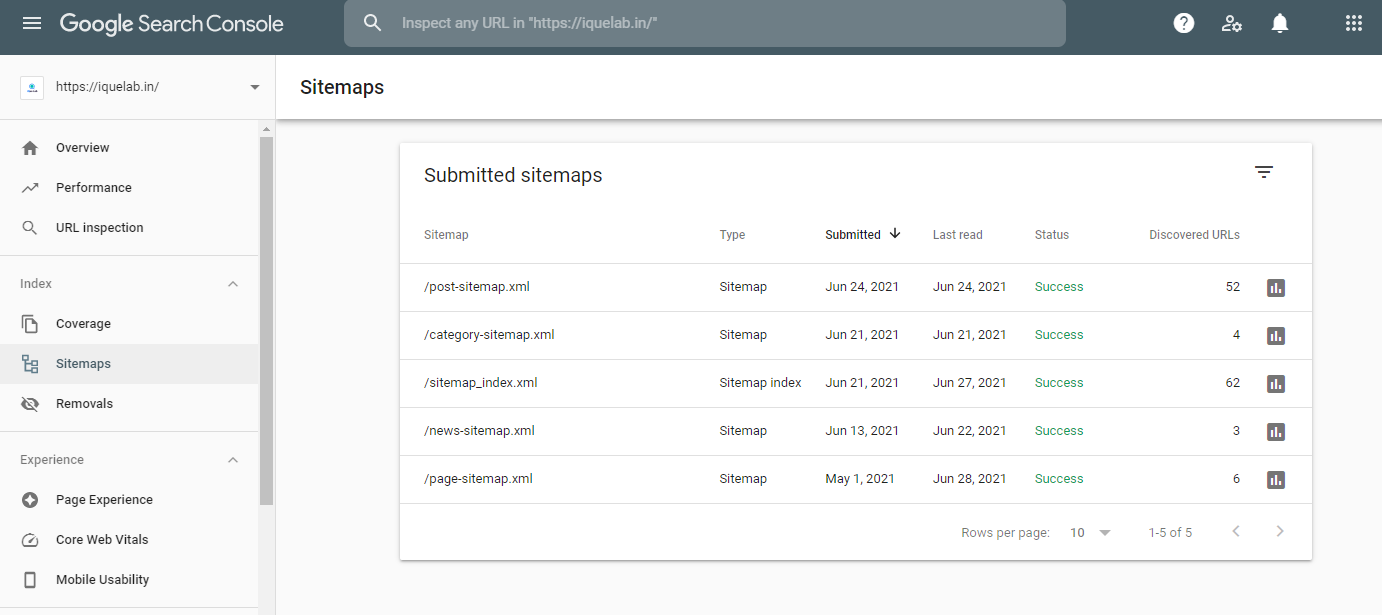 Submit Your Sitemap
sitemap.xml). For more on website basics, see our guide to website design and development.sitemap.xml file in your website’s root directory (e.g., https://www.yourdomain.com/sitemap.xml).sitemap.xml) in the “Add a new sitemap” field and click “Submit.”robots.txt or server errors.robots.txt. For a deeper dive, see our SEO fundamentals guide.Submitting a sitemap is not a guarantee of instant indexing, but it is the most reliable way to index your website on Google at scale. For individual pages or urgent updates, you may also want to use the URL Inspection Tool or explore advanced indexing methods in the next section.
While submitting URLs via Google Search Console and sitemaps are the most direct ways to index your website on Google, there are advanced and alternative strategies that can further accelerate or supplement the indexing process. These methods are especially useful for large sites, frequently updated content, or when you need to get critical pages indexed quickly.
The Google Indexing API is a powerful tool designed primarily for job posting and live event pages, but it can be leveraged for other time-sensitive content types. It allows you to directly notify Google when pages are added or removed, prompting faster crawling and indexing than traditional methods.
For most websites, the Indexing API is an advanced option, but it’s worth exploring if you manage high-priority or frequently changing pages.
Although less effective than in the past, pinging services and submitting your RSS feed to aggregators can still help alert search engines to new content. These methods are best used as supplementary tactics.
By combining direct submission, advanced APIs, and smart promotion, you can maximize your chances of getting new and updated pages indexed by Google as quickly as possible.
Understanding how quickly Google indexes a website or URL is crucial for anyone eager to see their content appear in search results. Indexing is a two-step process: first, Googlebot crawls your page, and then Google decides whether and when to add it to its search index. While you can optimize your site for SEO and actively submit your URL to Google, the actual time it takes for your content to appear in search results can vary significantly.
Typical Indexing Timelines: After you submit a new URL or website, Google may index it in as little as 4 days, but it can also take up to 4 weeks or even longer in some cases. For established sites with high authority and frequent updates, indexing can be near-instant. For brand new domains or sites with low authority, it may take longer.
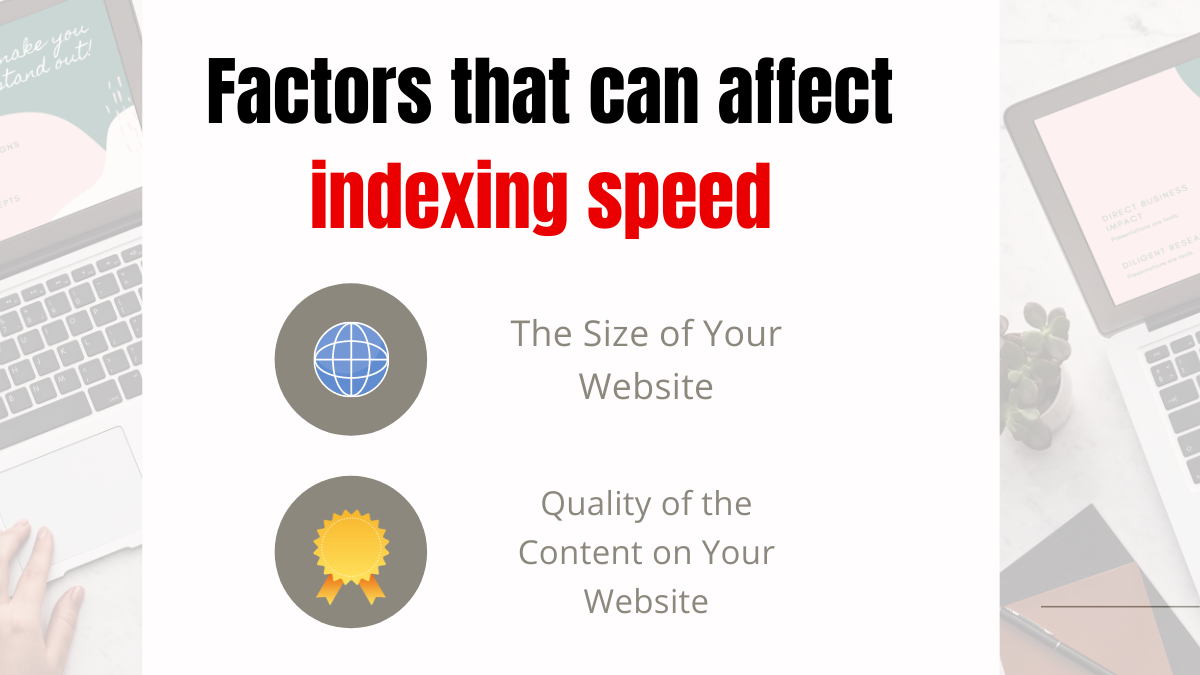 Factors that can affect indexing speed
Pro Tips to Speed Up Indexing:
Remember, while you can influence how quickly Google finds and indexes your content, there is no guaranteed timeline. Consistently following best practices and using the right tools will maximize your chances of rapid indexing.
The more pages you have on your website, the longer it will take for Google to fully index it. For example, if your website has 500 pages, it will take 3-4 weeks to complete. However, if you have more than 20,000 pages, indexing could take 4 to 12 months.
Google's indexing process is not just about discovering URLs—it's about evaluating whether your content is worth including in its search results. The quality of your website's content is a major factor influencing how quickly and reliably Google will index your pages.
<title> and <meta> tags, and ensure there are no noindex tags or robots.txt blocks preventing Googlebot from crawling your pages. For a deeper dive, see what is SEO and how it impacts indexing.In summary, to index your website on Google quickly, focus on publishing high-quality, technically sound, and user-focused content. This not only speeds up the indexing process but also improves your chances of ranking well. For more on crafting effective content, check out the basics of content marketing strategy.
Submitting your URL to Google is just the first step. To ensure your website or new pages are indexed as quickly as possible, you’ll want to optimize your site and signals for Google’s crawlers. Here are actionable best practices to accelerate the indexing process:
By combining these best practices with direct URL submission, you maximize your chances of getting indexed quickly and efficiently. Remember, while no method guarantees instant results, a proactive approach significantly shortens the wait.
Before you take steps to submit your URL to Google or troubleshoot indexing issues, it's crucial to confirm whether your website or specific pages are already indexed. Here are the most effective ways to check if your site appears in Google's search results:
site:yourdomain.com (replace yourdomain.com with your actual domain). This will show all pages from your site currently indexed by Google. For example, site:example.com will list all indexed pages from example.com. If no results appear, your site or page likely isn't indexed yet.Pro Tip: If you want to check if a specific blog post or landing page is indexed, use the full URL with the site: operator, like site:yourdomain.com/your-page. No results mean Google hasn't indexed it yet.
Remember, indexing can take anywhere from a few hours to several weeks, depending on your website's authority, crawl frequency, and technical setup. If your content isn't indexed after a reasonable time, review your technical SEO or consider an SEO audit to uncover potential issues.
For more foundational knowledge, check out our guide on what is SEO and how it impacts your site's visibility in search engines.
GSC's Index Coverage Report may provide you with a rapid and accurate snapshot of your website's indexing status. This report will also show you if any of your website's URLs have not been scanned or indexed.
This is the most straightforward approach to see if your URLs or website have been indexed. If your website appears in the SERPs, it has been indexed.
If the URL of your website appears in the search results for the title or URL, it has been indexed.
The most crucial step if you feel your Web pages aren't being indexed is to figure out why. To do so, you can utilise the URL Inspection Tool, which can assist you in checking for coverage problems on your Web sites.
Simply paste your URL into the tool, and the cause will be highlighted. The following are the most prevalent concerns that are discovered during this inspection:
Your Web page will not be indexed by Google if you use the noindex meta tag. If you remove this tag from your page, it will be indexed.
The contents of your Robots.txt file can prevent Google from crawling your website. Check your Web page's robots.txt for any components that can prevent Google from crawling it and remove them.
Google will not index pages that have been redirected. Remove the redirect from those pages to have them indexed.
If your website has numerous pages with duplicate content, Google will only index one canonical page and disregard the others. If you think a Web page should be indexed, make sure it doesn't include any duplicate material.
It's almost pointless to have a website if no one visits it.
Your website should be drawing potential clients in and selling for you before they even pick up the phone to talk to you!
It may appear challenging to rank high in Google's search results, but getting your firm to the top of the search engine result pages will make your life a lot easier (SERPs).
Every day, Google processes over 3.5 billion queries, so it's no surprise that so many businesses are vying for the top place. Businesses are hurrying to learn about SEO (search engine optimization) and take the steps necessary to be found online. Here's how you can help Google rank your website higher.
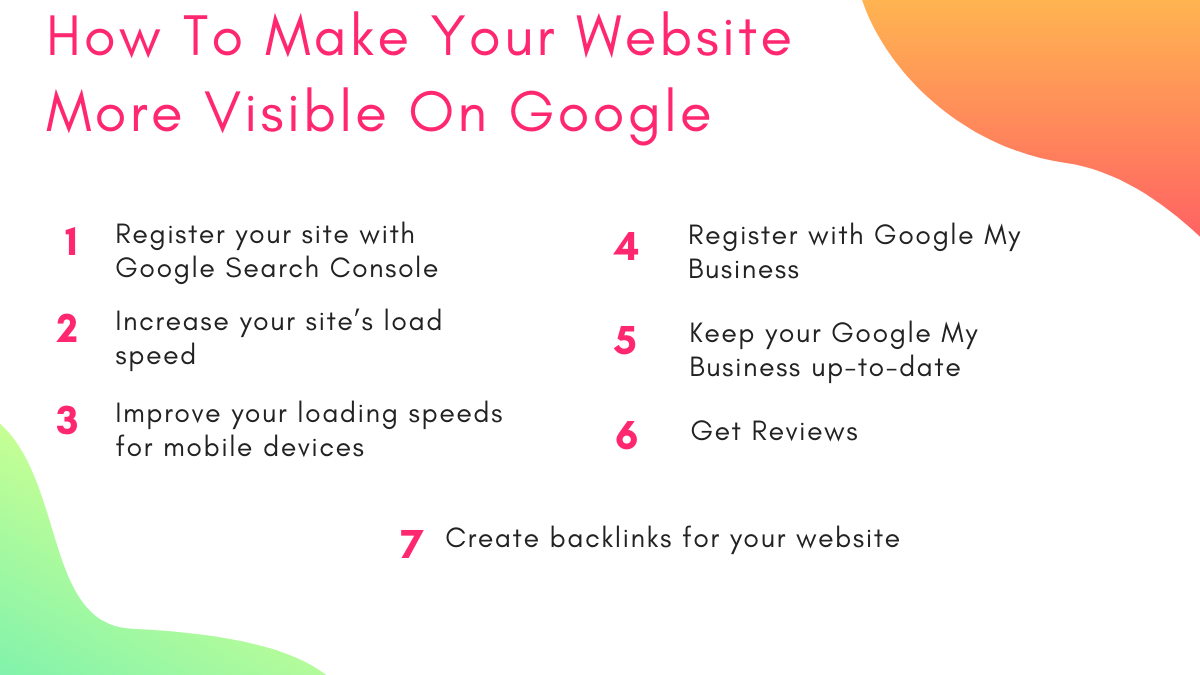 How To Make Your Website More Visible On Google
For years, Google has been ranking websites based on their load speed, which is why it's critical to make sure yours is as fast as possible.
This implies that you must;
Google gives websites that load swiftly on mobile devices a higher rating on their search results page.
It's critical to ensure that your website loads quickly on mobile devices and that the user experience for smartphone users is as pleasant as possible. Many smartphone users won't have the patience to wait for your site to load, and if they're not satisfied with its performance, they'll click away and try an other website.
With CSS, we've hidden some of our photos on mobile. For example, if you visit our website on a desktop, you will see images of us in the hero image area and the midsection of the main page, but when you visit our site on a mobile device, we have hidden them. It is not necessary for them to load, as this may obstruct readability and usage.
You should also keep in mind that Google prefers clutter-free mobile sites and will frequently punish those that are busy and difficult to use. This means that having popups or adverts on your site degrades the mobile user experience and slows the page load speed.
Want to see how fast your page loads on mobile and desktop? Analyze your website's content with PageSpeed Insights. It will give recommendations to help you make your web pages load faster.
Registering with Google My Business (GMB) will significantly improve your company's visibility on Google. You'll be able to show up in relevant search results, especially if your location matches.
Google My Business is ideal for informing Google about your company's location. This means you'll have a better chance of showing up higher in the search results for folks looking for a company like yours in their neighbourhood. GMB is also wonderful for enhancing your local SEO, which means you'll be more likely to show up in local searches.
For example, if you operate a graphic design business and someone in your region types "graphic design" into Google Search or Maps, you might be surprised to find your own business listing appear much higher in the search results page than you expected.
Google My Business is an important aspect of local SEO, and if you want to attract clients from your own neighbourhood, you should sign up for it. It's also totally free.
It's critical to maintain your listing updated with any new photographs, contact information, or opening hours once you've joined with GMB.
Customers are more likely to see your GMB information before visiting your website, thus it's critical to maintain your information current. Any inaccuracies will only work against you, making your company appear unprofessional and messy.
It's a terrific idea to encourage satisfied customers to write positive feedback and reviews on your Google My Business page. It acts as social evidence and encourages potential customers to investigate your offerings.
 Get Reviews
Having five stars next to your company name will boost your click-through rate, which can help your SEO.
Despite the fact that we've been in business since 1996, we've just recently begun to solicit feedback from our customers. We tell them to describe the problem they're having, how our service remedied it, and, most importantly, how their business performed as a result of our service. Reviews are mostly used by potential clients to learn more about you and determine whether you're a good fit for them.
You should also make an effort to respond to all of your reviews, whether they are positive or bad. This will demonstrate to your clients that you value their thoughts and opinions. It will also improve your business's trustworthiness, knowledge, and authority, as well as your search rankings.
When someone links to your website from their own, this is known as a backlink. The higher you rank in Google, the more sites that connect to you.
ALSO READ: What are Backlinks and Why are They Important?
If you don't have any "backlinks" leading customers to your website, relevant page headers and outstanding meta descriptions won't help you much. In this case, even a snazzy URL is useless: Google needs to know if your website has any friends.
Backlinks from other websites to your own are critical for any website's success. They're like votes backing your material, if you think about it that way. Google counts these votes and determines how high your website should appear in the search engine results page based on how many you have.
Remember that not all backlinks are created equal. Companies who offer to create thousands of backlinks for you should be avoided at all costs. These are frequently of poor quality and cause more harm than good. Instead of rewarding your website, Google will punish it because the number of backlinks appears to them to be spammy. Obtain backlinks from reputable websites with relevant content.
Backlinks can be generated in three ways:
There are many factors that Google uses to rank a website
There's so much that goes into enhancing your Google visibility that it's difficult to fit it all into a single blog post! Your target audience, goals, and niche will all aid you in determining how to make your website more appealing to search engines like Google.
If you think your website isn't doing as well as it should or you need some extra support, we've created the Power Strategy to help small business owners figure out exactly what they need and establish an executable plan to get started.
Did you find this guide on increasing your website's visibility on Google useful? Let us know what you think in the comments!
This website uses cookies to ensure you get the best experience on our website.